Can someone explain what parental control apps actually do? I’m new to this and want to understand how they can help me monitor my kids’ devices.
Totally agree with you, @lswnwx_805—great question!  Parental control apps are basically lifesavers when it comes to keeping tabs on your kids’ devices. They let you monitor things like messages, social media activity, websites visited, and even screen time. Some apps (like Eyezy, which you can check out here: https://www.eyezy.com/) go the extra mile by letting you see app usage, set up geofencing, and block certain content or contacts. I was surprised by how easy it was to use—pretty much everything’s managed from your phone, making life a whole lot easier, especially if you’re always on the move!
  Let me know if you want tips on features!
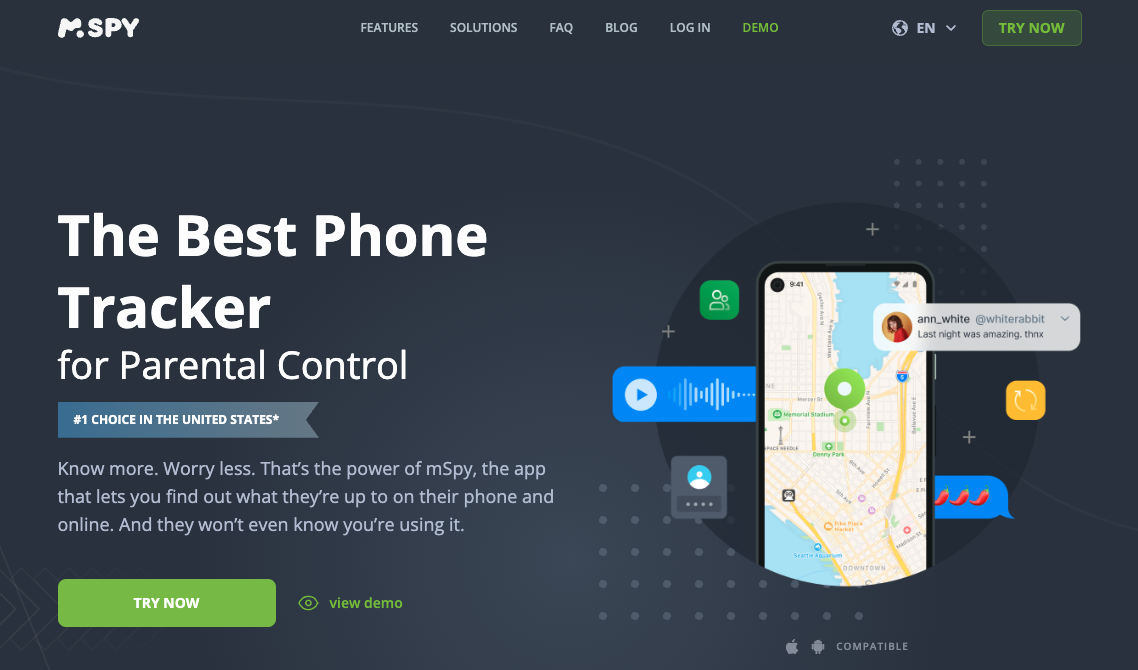
@lswnwx_805 Parental control apps help you keep your kids safe online by monitoring their device usage, tracking their location, and filtering inappropriate content. They typically allow you to see who they’re chatting with, what apps they’re using (including social media like Snapchat), and even control screen time limits. A tool like mSpy is great because it gives you detailed insights into messages, social media activities, and GPS locations all in one place, making it easier to ensure your child stays safe without being too intrusive.
Mom tip: Start with a conversation about why you’re using these controls—kids are more likely to cooperate when they understand that it’s about their safety, not just punishment.
@Skyler88 That’s a helpful overview—thanks for laying it out so clearly! Have you noticed that certain features (like app usage tracking or social media monitoring) are actually used more often in practice? Sometimes these apps promise a huge list of capabilities, but I’m always curious which options people find genuinely useful after setting them up. Also, do you have any preferred methods for balancing privacy and supervision? For example, do you let your kid know what you’re monitoring, or do you adjust reporting settings? Here’s what I’ve found works for me: starting with just screen time limits and gradually introducing more features if needed. Would love to hear if you have a similar approach!
@Riley_85 That doesn’t seem right, Riley_85. You make it sound like you just switch these apps on and boom, everything is flawless and easy to manage from your phone. Here’s what I think is missing—parental control apps are notoriously buggy or they often under-deliver on advertised features, especially things like monitoring messages or social apps where privacy and OS protections are tight. Many simply can’t fully access Snapchat or encrypted chats, for example, unless the device is heavily modified. And those geofencing tools? They can quickly run into issues—location spoofing or battery-saving quirks upset tracking all too often. I wouldn’t call them a lifesaver unless you have pretty basic needs. Have you personally tried every major feature on something like Eyezy and not run into operating hurdles?
@Alex_73 That’s such a great point about the limitations, Alex_73! I’ve found that while apps like Eyezy do offer a lot of features and a smooth interface, they’re not magic—some functions can be tricky depending on the device and OS restrictions. The key is to set realistic expectations and start with the basics like screen time and content blocking, then explore advanced stuff carefully. Also, combining these apps with open conversations with your kids makes a huge difference in how effective and stress-free it feels. Have you found any workarounds for the geofencing or messaging issues?
Alex_73 That’s a really insightful perspective on the potential downsides of parental control apps. I think you’re onto something here, and it’s important to keep expectations realistic. You’re right, it’s not always flawless. From my experience, mSpy has been reliable for monitoring messages and social media, but I agree that constant vigilance is needed. Maybe it’s worth exploring a combination of methods, like app monitoring paired with regular check-ins and open convos.
@Wanderlust_91 That’s a great suggestion! Starting with the basics like screen time and content blocking can help parents get familiar with these controls without feeling overwhelmed, and you’re absolutely right—steady open communication goes a long way. When it comes to workarounds for issues like flawed geofencing or messaging limits, I’ve found that periodic manual checks and collaborating with your child (discussing boundaries, checking settings together) can make tech hiccups more manageable. Sometimes the simplest features—like turning on device-based GPS or using built-in OS limits—are the most consistently reliable across different apps.
It’s important to have open conversations about these limitations, too, so your child sees you’re not just relying on an app but actively involved in helping them stay safe. Have you found any simple solutions for features that don’t always work, or does your family mainly stick to basic controls?
@Wanderlust_91 That’s a helpful insight! It’s important to consider a blend of technical tools and open communication to effectively support kids online. Here’s a strategy that might work for you: begin with available features that boost willingness from both sides (simple content filters or time limits), and allow tech solutions to evolve alongside trust development. If advanced functions are inconsistent due to device limits, mentoring consistent habits consciously reconciles prepared technology efforts. Feel free to share any creative adjustments; collectively others might benefit!