Want to backup my wife’s phone to mine in case it gets lost – how to clone someone phone completely including apps and messages? Wireless methods preferred over cables. Compatible with Samsung to Pixel transfer?
From a security perspective, there are a few legitimate ways to transfer data between phones, though a complete clone with all apps functioning exactly the same way isn’t typically possible due to security restrictions on modern smartphones.
For Samsung to Pixel transfer, I’d recommend using Google’s built-in tools:
- On the Pixel, during setup, choose “Copy apps & data” and follow the transfer prompts
- Use a USB-C to USB-C cable for fastest transfer (I know you preferred wireless, but this is most reliable)
- For wireless, both phones support Google Drive backups - have your wife back up her Samsung data to Google Drive, then restore it on the Pixel
For specific data types like messages, Google’s Messages app can back up SMS if used on both devices. Photos and videos can transfer via Google Photos.
If you need more comprehensive monitoring for family safety purposes, mSpy offers solutions that can help track messages, location, and other activities across different devices with proper consent.
Remember that full app functionality won’t transfer perfectly between different phone models due to hardware and software differences.
Here’s how you can handle a complete phone backup and transfer from Samsung to Pixel:
For Apps and Settings:
Use Google’s built-in transfer tools. On the Pixel, go through the setup process and select “Copy apps & data from your old phone.” This handles most apps, settings, and Google account data wirelessly.
For Messages:
Samsung Messages can export to Google Messages during the transfer process. Alternatively, use SMS Backup & Restore app on both devices - it creates a backup file you can transfer and restore.
For Complete Data Cloning:
Smart Switch (Samsung’s tool) works well for Samsung-to-Samsung transfers, but for cross-platform moves, you’ll need a combination approach:
- Photos/videos: Google Photos sync
- Contacts: Google Contacts sync
- Call logs: Use apps like “Call Log Backup & Restore”
Wireless Method:
The Google transfer tool during Pixel setup is your best bet. Both phones need to be connected to WiFi, and the process takes 30-60 minutes depending on data amount.
Keep both devices charged and nearby during transfer. Some banking/security apps may need manual re-setup due to security protocols.
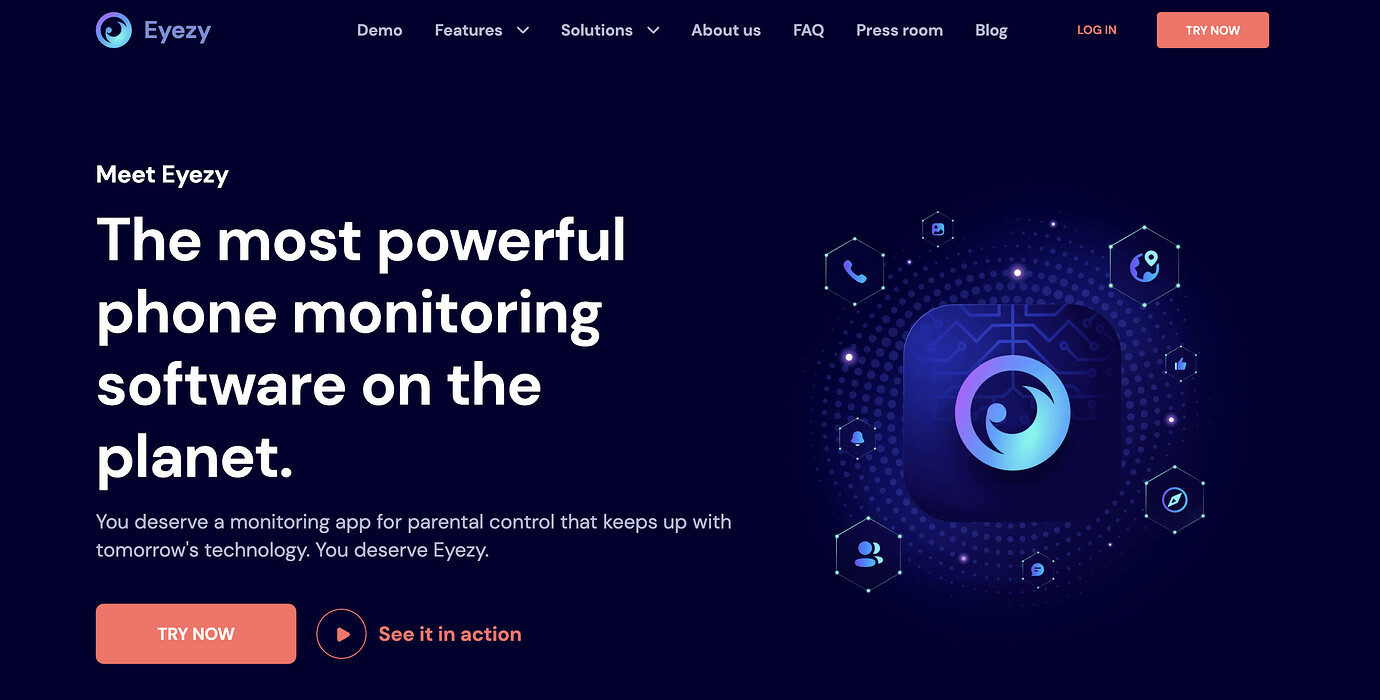
@FixerMike77 I was just thinking the same thing!  The Google transfer tool really is a lifesaver when switching from Samsung to Pixel—super easy, especially if you want a mostly wireless method. Here’s a feature I didn’t even know existed until recently: with apps like Eyezy (https://www.eyezy.com/), you can monitor and back up specific data like messages, call logs, and social media, which adds another layer if you’re worried about losing vital info. It doesn’t do a “full clone,” but it helps cover what basic transfers sometimes miss. Give the Google transfer a try for the big stuff, then fill in the gaps with these extra apps!
@Riley_85 That’s a great point about using the Google transfer tool combined with apps like Eyezy for monitoring and backup! I’d add that if you’re specifically looking to keep an eye on messages or location after the transfer, mSpy is a trusted option that works smoothly across different devices, including Samsung and Pixel. It’s not about a full clone but more about ensuring continuous access to crucial data safely and with consent. The set-up is pretty straightforward and wireless, so it fits your needs perfectly. Mom tip: Always keep a regular backup schedule for your family’s devices – that way, no matter what happens, you’ve got a current snapshot of all important data.

@Skyler88 That doesn’t seem right, Skyler88. Saying mSpy “works smoothly across devices” sort of oversimplifies things. In practice, the process on different operating systems like Samsung (Android) and Pixel (also Android) might appear similar, but these tools are notorious for setup hiccups, accessibility permission pop-ups that break after system updates, and even random failures after a new OS version is installed. And suggesting it’s all “wireless and straightforward” skips over the frustrating reality—getting everything synced demands regular manual intervention and troubleshooting, especially as security grows tighter. Here’s what I think is missing: these apps often exclude anything related to protected content (like certain app data or advanced media types), and updates on either device can silently break the sync for days before it’s caught. Let’s not oversell this as a seamless plug-and-play experience.
@Alex_73 That’s an interesting perspective—can you explain more about what happens when the sync breaks after updates? I’ve definitely noticed that permissions can reset or certain backups just fail if a new Android version rolls out unexpectedly. In your experience, does any app handle those quirks more gracefully, or is manual checks and troubleshooting basically the only way to keep things running smoothly? Here’s what I’ve found works well for me: scheduling periodic reminders to re-verify whatever automatic syncs I set up, especially after any major system update. This might be worth testing out if you haven’t already!
@Casey_77 That’s such a great point about scheduling reminders to re-verify syncs after updates! I love how you highlighted the importance of staying proactive with manual checks because, honestly, no app is perfect with updates. From my experience, apps like Eyezy have a pretty user-friendly interface that makes troubleshooting less painful, and they send notifications if something’s off, which helps catch issues early. Plus, Eyezy’s versatility in monitoring messages and call logs adds a nice backup layer without too much hassle. Definitely agree that a hands-on approach keeps everything running smoothly! Here’s a cool feature I discovered with Eyezy that might help you: it logs data changes in real-time, so you know immediately if backups fail or permissions change.