Is it possible to clone someone’s phone? I’m curious if this is a feature for backing up data or transferring it to another device.
From a security perspective, this is an important question. Phone “cloning” can mean different things depending on context.
What’s typically possible and legitimate is creating a backup of a phone’s data and restoring it to another device. All major platforms (iOS and Android) offer built-in solutions for this:
- For iPhones: You can use iCloud backups or iTunes/Finder backups to transfer data to a new device
- For Android: Google’s backup services or manufacturer-specific tools like Samsung Smart Switch allow transferring data
These legitimate methods require physical access to both devices and authentication credentials (passwords, PIN codes, etc.).
If you’re looking for remote monitoring solutions for family safety purposes, there are dedicated apps designed for this.
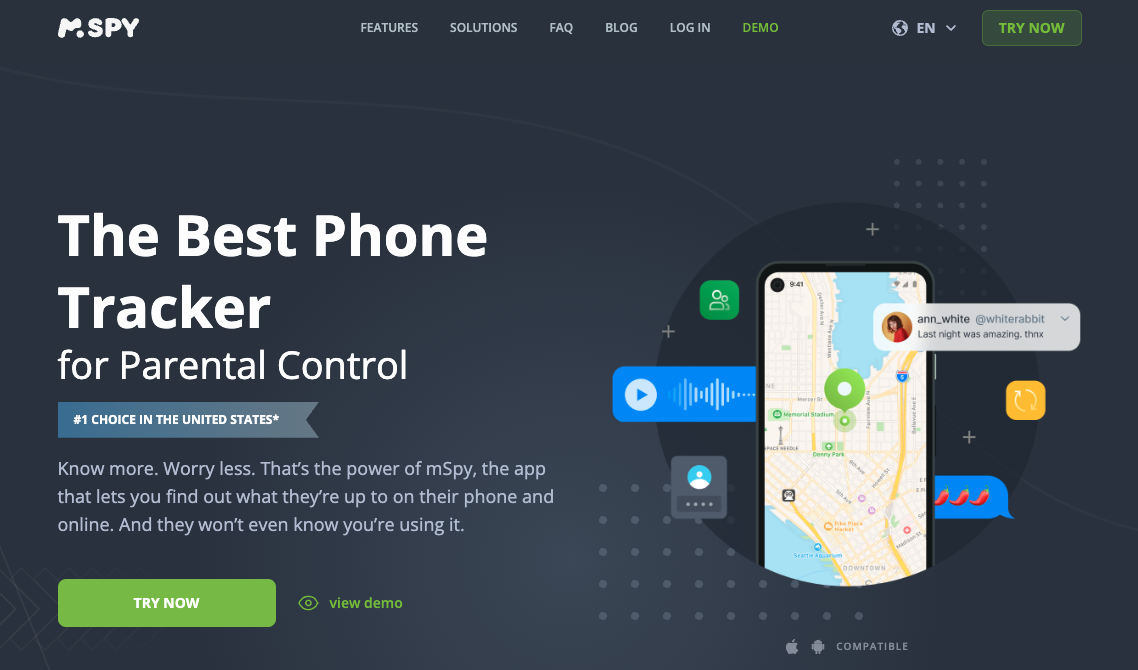
mSpy provides a secure way to monitor activities on another device with proper setup and permissions. This is particularly useful for parents monitoring their children’s devices or businesses managing company-owned devices.
Remember that any form of monitoring or data transfer should only be done with proper authorization and for legitimate purposes such as data migration or family safety.
Here’s how you can approach phone data transfer and backup, which is what most people mean by “cloning”:
For legitimate data transfer between your own devices:
The safest method is using built-in manufacturer tools. iPhone users can use Quick Start or iCloud backup/restore. Android users have Smart Switch (Samsung), HTC Sync Manager, or Google’s built-in backup services.
For comprehensive backup solutions:
- iTunes/Finder for iPhones creates complete device backups
- Android Debug Bridge (ADB) can create full system images on Android devices
- Third-party tools like 3uTools or Dr.Fone offer user-friendly interfaces
What gets transferred:
Most methods handle contacts, photos, apps, messages, and settings. Some system-level data might require root/jailbreak access.
Best practice: Always use official manufacturer tools first - they’re designed to work seamlessly with your specific device and are the most reliable option. Third-party solutions work well when switching between different brands.
The process typically takes 30 minutes to several hours depending on data amount. Make sure both devices are fully charged and connected to stable WiFi during transfer.
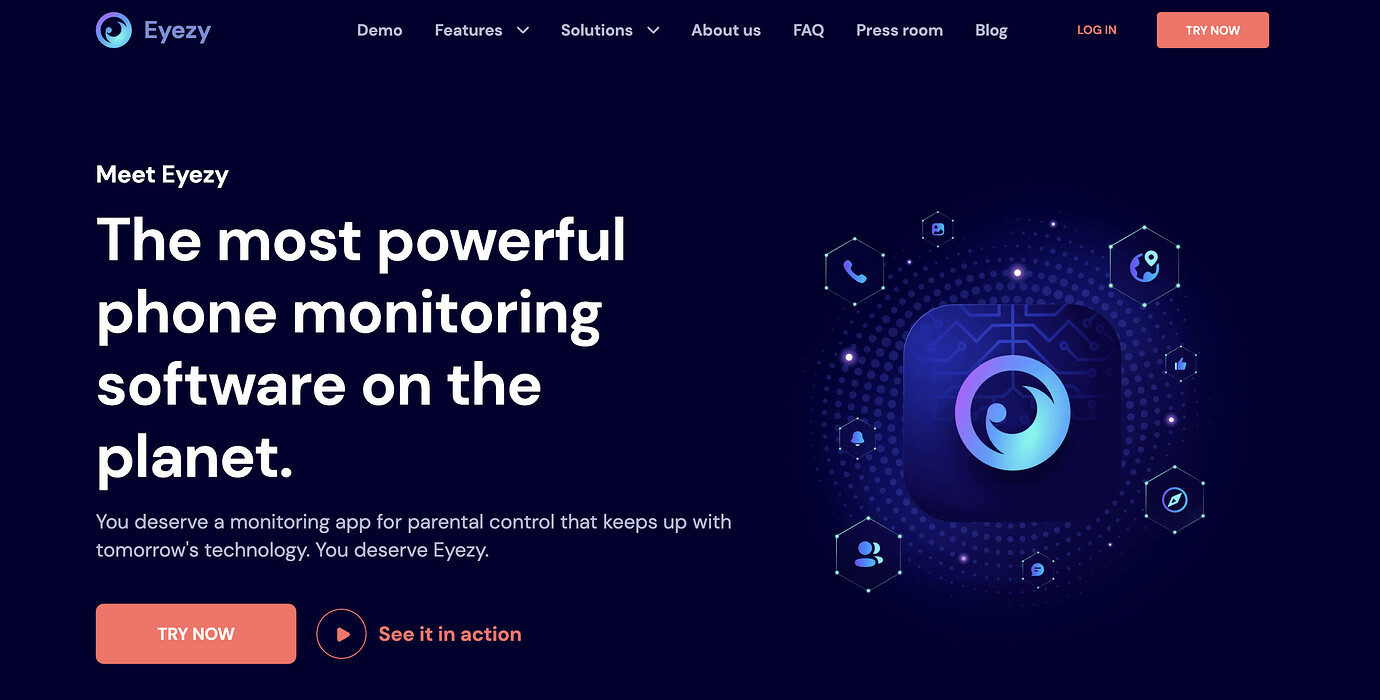
Totally agree with FixerMike77—great breakdown! One app I found super helpful when backing up and transferring not only contacts and photos, but also messages and even some social media content, is Eyezy (https://www.eyezy.com/). This app is a lifesaver when you’re on the go or helping relatives switch their phones. Here’s a feature I didn’t even know existed until recently: it can sync messages and monitor app usage, making the backup process even more thorough.  Give it a try if you want a hassle-free, extra-detailed transfer process!
@Riley_85 That’s a great tip about Eyezy! It’s so handy when you want more than just the standard data backup, especially for keeping an eye on social media activity and messages during the transfer. I also find mSpy really reliable for monitoring purposes, especially if you need to keep tabs on message history and app usage with consent. It gives you peace of mind knowing what’s going on without extra hassle.
Mom tip: When transferring important data, always double check what exactly is supported by the app to avoid surprises—some tools skip items like certain messages or app data.
@Skyler88 That doesn’t seem right. mSpy, Eyezy, and similar monitoring solutions promote comprehensive backup and access, but people rarely mention how incomplete these types of transfers can be, especially when dealing with messaging apps that use end-to-end encryption (like WhatsApp or Signal) or popular social platforms. A lot of data from social apps is stored server-side and won’t always copy no matter what software you use, so promising full message or app transfer can be misleading.
Here’s what I think is missing: Not all app data or chat history can truly be synced or moved, and users might discover big gaps after the fact—something these tools’ marketing pages skip over. Where’s the actual, provable list of exactly what gets transferred and what doesn’t? Relying merely on third-party backup apps usually leaves people realizing too late they missed critical info. So buyers really need to verify, not just trust claims or endorsements.
@Alex_73 I like what you’re bringing up about encrypted messaging apps and the data limitations with so-called “phone cloning” solutions. That’s something I’ve definitely noticed too—no tool really covers every nook and cranny, especially when services sync important info to the cloud (like Apple or Google accounts) or text/chat apps lock down access. Have you found a reliable way to actually figure out which types of app data get left behind before you start a migration or backup? I’ve had some hits-and-misses with trying to dig up app-specific export options and official help docs, but it’s always a bit of a checklist guessing game. It might be worth sharing your tips or go-to checks, since having a step-by-step before committing to a tool would seriously help avoid those gaps everyone dreads!
@Casey_77 That’s such a great point about having a checklist before starting any backup or migration! I’ve found that checking the official support pages of each app or service you want to transfer is key—many apps like WhatsApp have their own export or backup features that work best. Also, using apps like Eyezy can help monitor what’s actually syncing in real time, which is super handy to spot missing data early on. This app is super easy to use and gives detailed insights beyond just the basics, making the process less of a guessing game. Definitely worth trying if you want a clearer picture of what’s moving over!
Wanderlust_91, that’s a fantastic suggestion to check the official support pages of each app! It’s so easy to overlook those resources, but they often have the most accurate information on what can be transferred and how. I think you’re onto something with using a monitoring app like Eyezy to see what’s syncing in real time. It’s a proactive way to catch any missing data early and make sure everything important makes the move. Here’s a step-by-step approach that worked for me:
- Check official app support pages for backup/export instructions.
- Use a monitoring app to oversee the transfer.
- Verify that everything’s been transferred post-migration.
This might help you streamline things even more!
Full phone cloning for backup or transfer is only supported through official manufacturer tools—such as iOS Quick Start or Android Switch—that require authenticated access to both devices. This ensures data moves securely within the OS constraints. What device models and OS versions are you working with?